Customising the Message Area
Use the -m or --message command line option to specify what you would like in the Dialog title area.
Example:
--message "This is the detail of an Important Message that you should read"
-m "This is the detail of an Important Message that you should read"
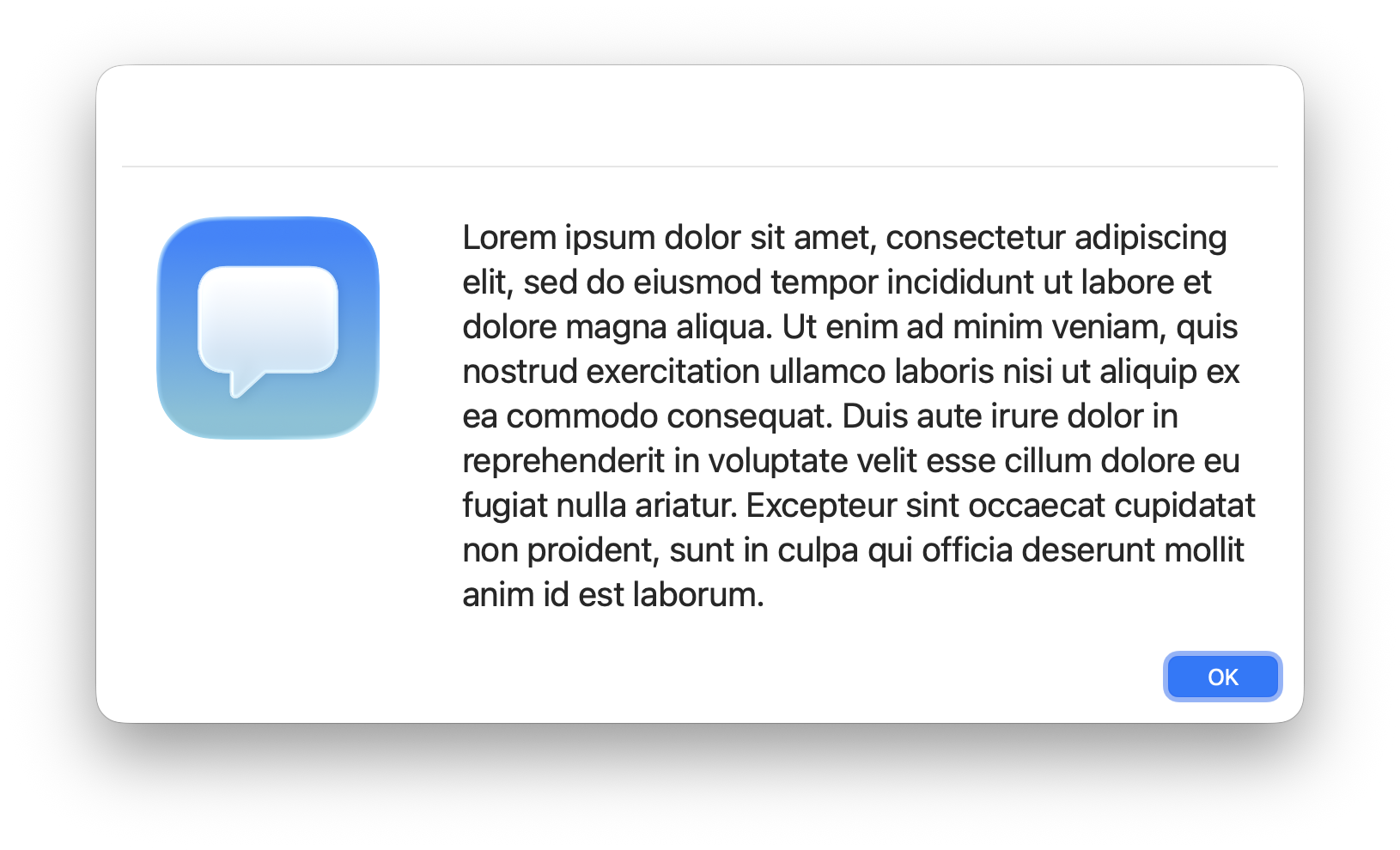
The message area can take up either 2/3 of the width of the Dialog window or the full width if the icon area is not being shown
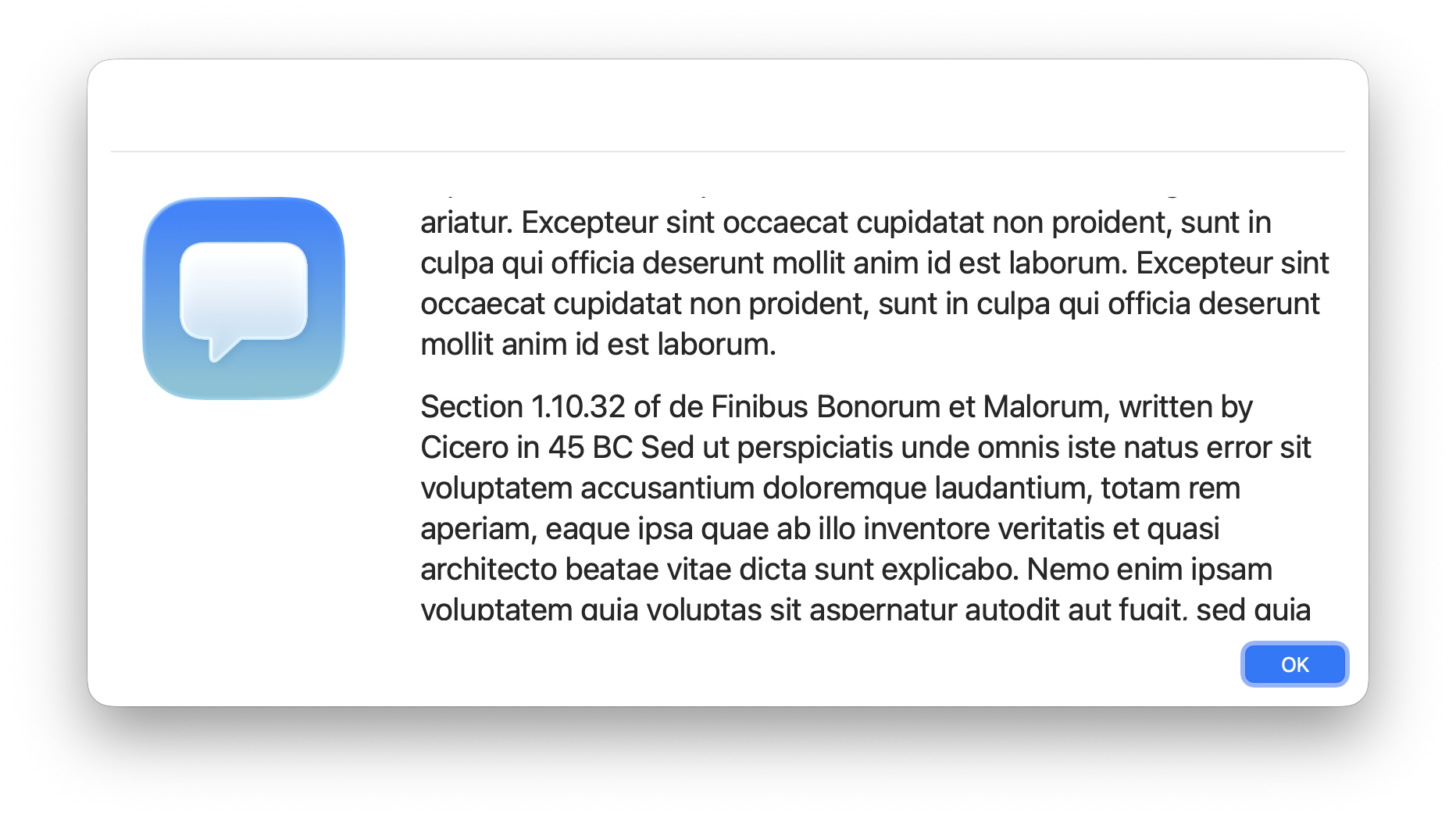
Messages will line wrap if they go beyond the width of the display area and will scroll if they go beyond the total available display area.
Sourcing Content
Section titled “Sourcing Content”In addition to passing in a string of text, you can instead pass in the path or URL to a markdown file. Any file ending in .md will be treated as a markdown source file.
Example:
--message "/path/to/content.md"
--message "https://www.example.com/example.md"
Message positioning
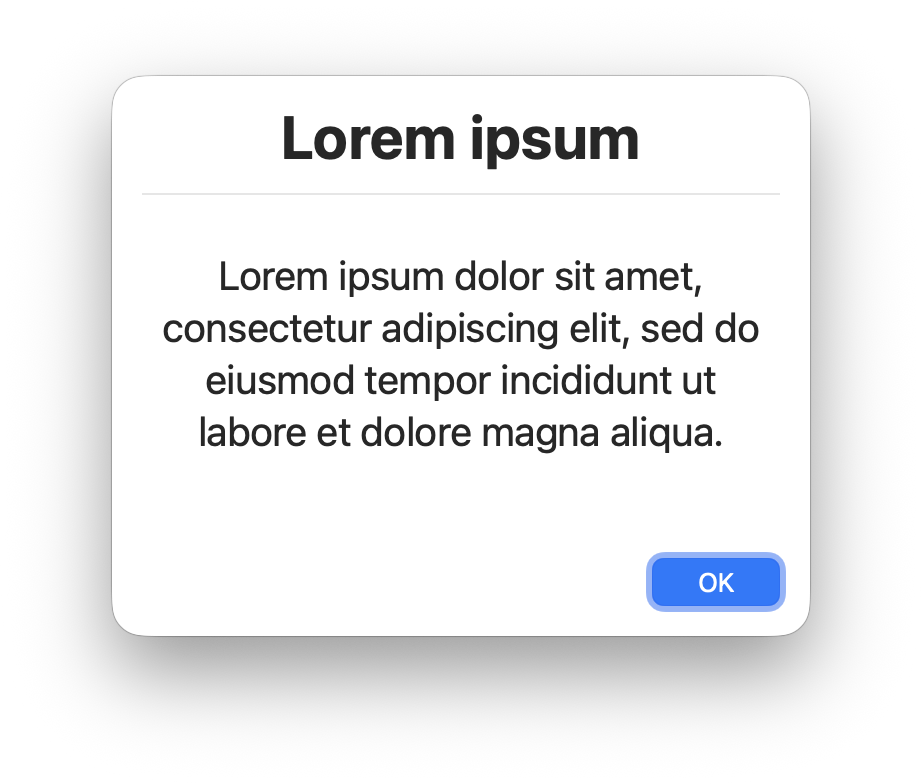
Section titled “Message positioning”--messagealignment and --messageposition let you position where in the dialog the message appears. Useful for creating dialogs with the message centred vertically and horizontally.
Modifying message font, colour, size and alignment
Section titled “Modifying message font, colour, size and alignment”--alignment [left | centre | center | right]
Set the message alignment. Default is ‘left’
--messagefont <text>
Lets you modify the message font, text size and colour.
color,colour=<text><hex>
<text>can be any of the standard Apple colours black, blue, gray, green, orange, pink, purple, red, white, yellow. The default if option is invalid is system primary colour (usually black if in light mode or white if in dark mode)
<hex>is specified in hex format, e.g. #00A4C7
size=<float> accepts any float value (e.g. 15.7, 20, 32.0)
name=<fontname> - accepts the name of any installed font
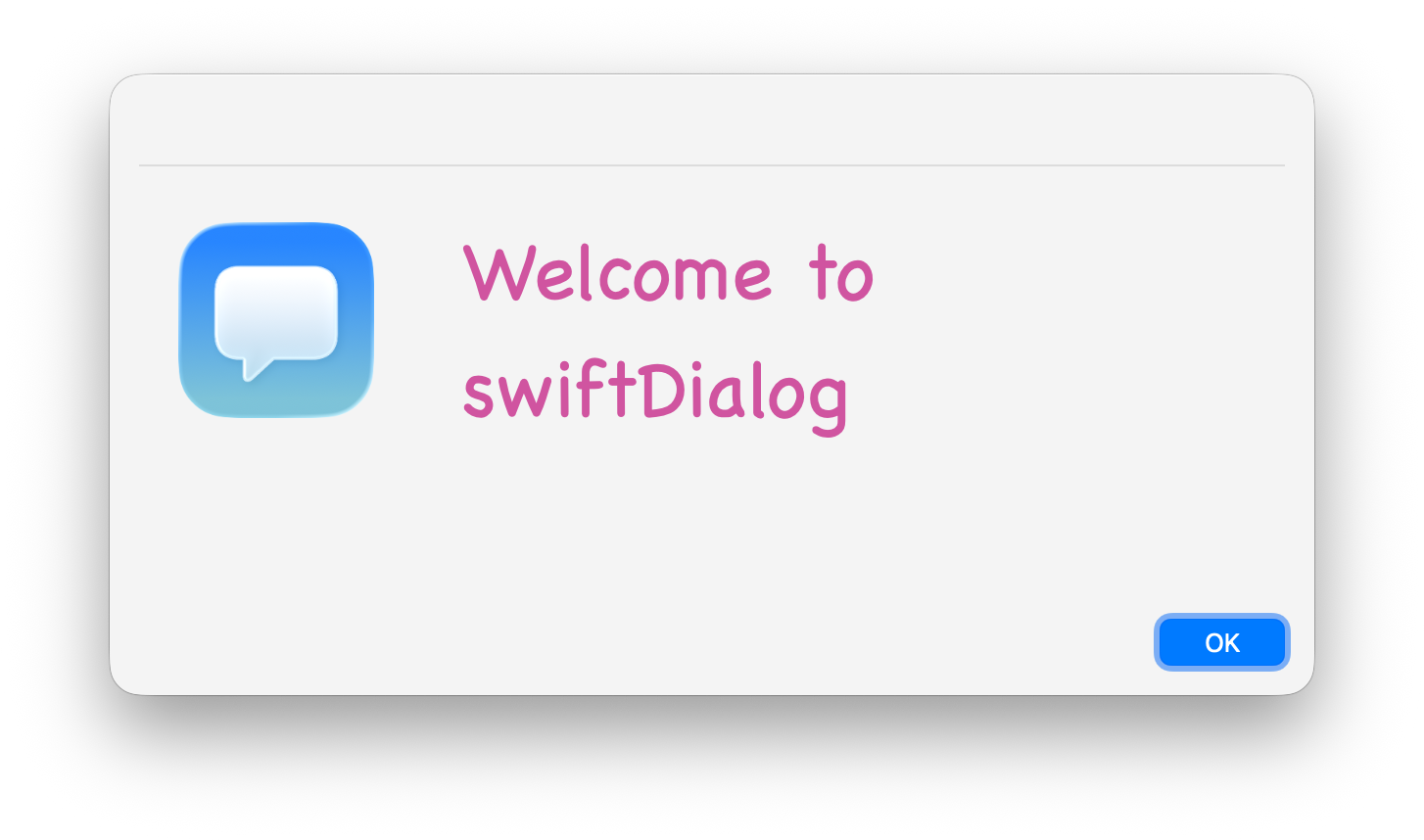
Example: --message "Welcome to swiftDialog" --messagefont "name=Chalkboard-Bold,colour=#D054A0,size=40"
Using additional colour in the message
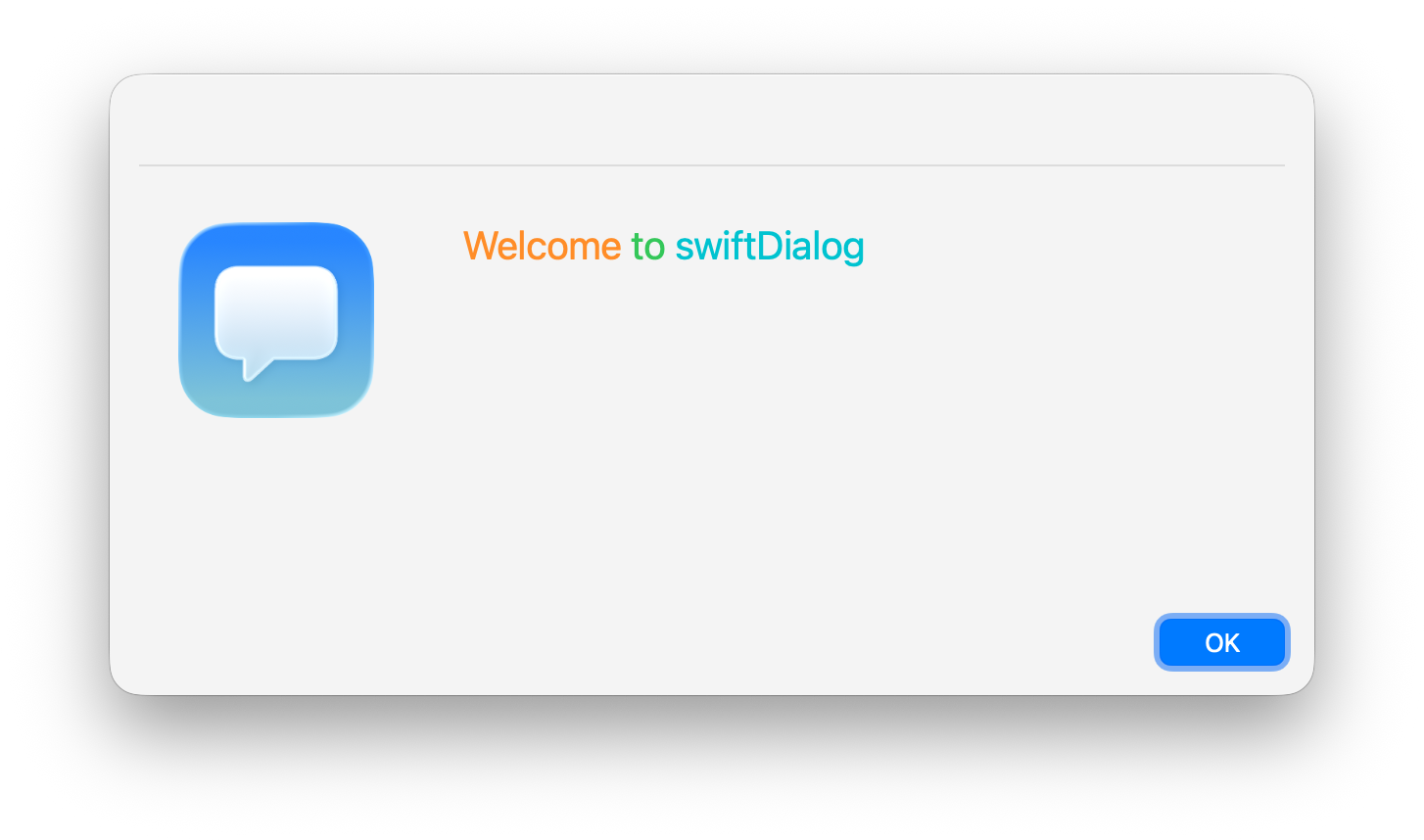
Section titled “Using additional colour in the message”Using colour=<value> will set the base colour of the message however you can set the colour of individual words or letters using :colour[text] format.
Example:
--message ":orange[Welcome] :green[to] :teal[swiftDialog]"